ESS Payroll Reference Information

​​Employee Self-Service (ESS)

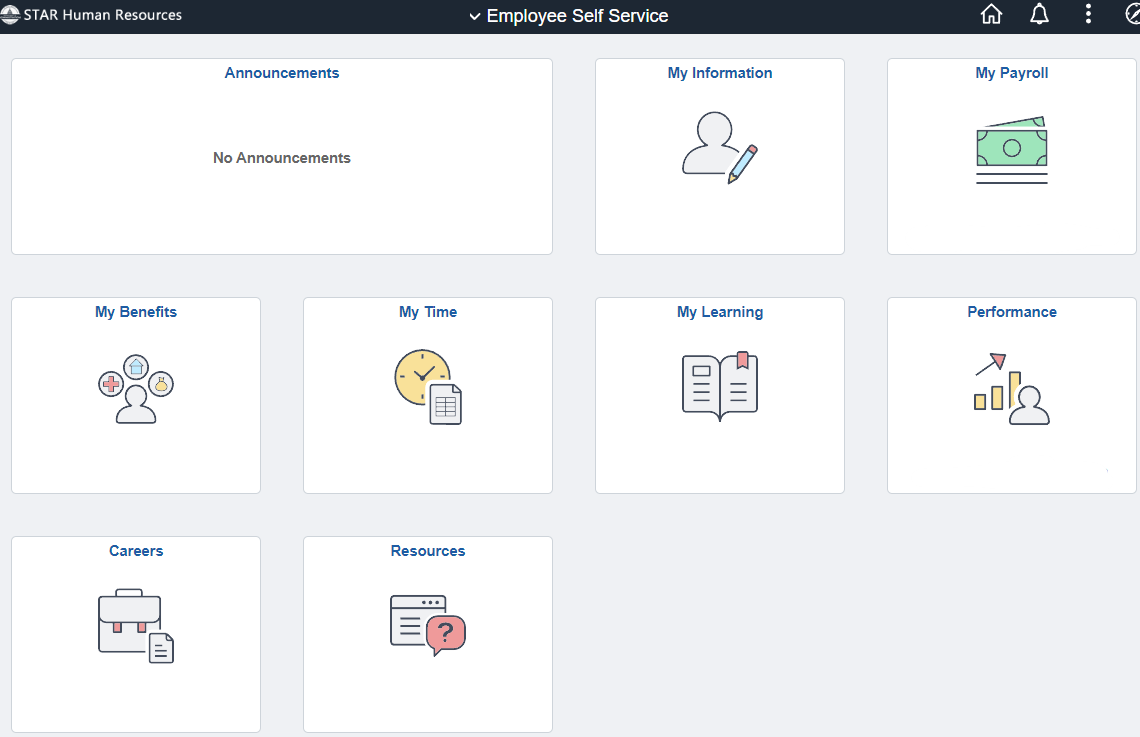
State of Wisconsin agencies use Employee Self-Service (ESS) to administer employees' payroll and benefits. The image below depicts the ESS payroll functionality along with descriptions of each referenced item.

Employees who need assistance navigating the ESS page, or have additional questions regarding information on this page, should contact their agency's payroll office.

Go to the Employee Self Service Job Aids page for a full listing of job aids.​

Employee Self-Service (ESS) main page with tiles for 9 categories of information


Pages Available Within Tiles

My Information tile with the outline of a gray preson and blue pencil with red eraser
  • Update address, phone numbers, emergency contacts and demographic information
  • Set Emergency Notification System (RAVE) preferences

My Payroll tile with one full green dollar bill and another bill partially visible behind it
  • View paycheck and W-2s
  • Update direct deposit and tax withholding
My Benefits tile with the outline of a gray person and 3 bubbles: around them representing health, home, and money
  • Enroll in benefits
  • Review benefit & dependent information
  • View 1095-C form
  • ​View Open Enrollment Confirmation Statement
MyTime.png
  • Enter timesheet
  • Enter and review absence information
My Learning tile with an open book showing two gray pages and a small red bookmark
  • ​Direct link to ​​Cornerstone Training module
Performance tile with a yellow bar graph and red arrow pointing up to the right above it , behind a gray outline of a person
  • Review performance evaluation documents
Careers tile with a gray briefcase and red buckles, and a small gray document in front of the briefcase on the right corner
  • ​Review and apply for active State of Wisconsin job postings
Resources tile with a gray document in the center and a red bubble with a question mark to the right of the document
  • Direct links to job aids, benefit forms, payroll information and Wellness resources


Back to top button